Model 3 and Model Y Wrap Templates: A Guide to Free Tesla PNGs
Choose the right Tesla Model 3 or Model Y wrap template, understand the panel layout, and prepare a free digital-wrap PNG for export.
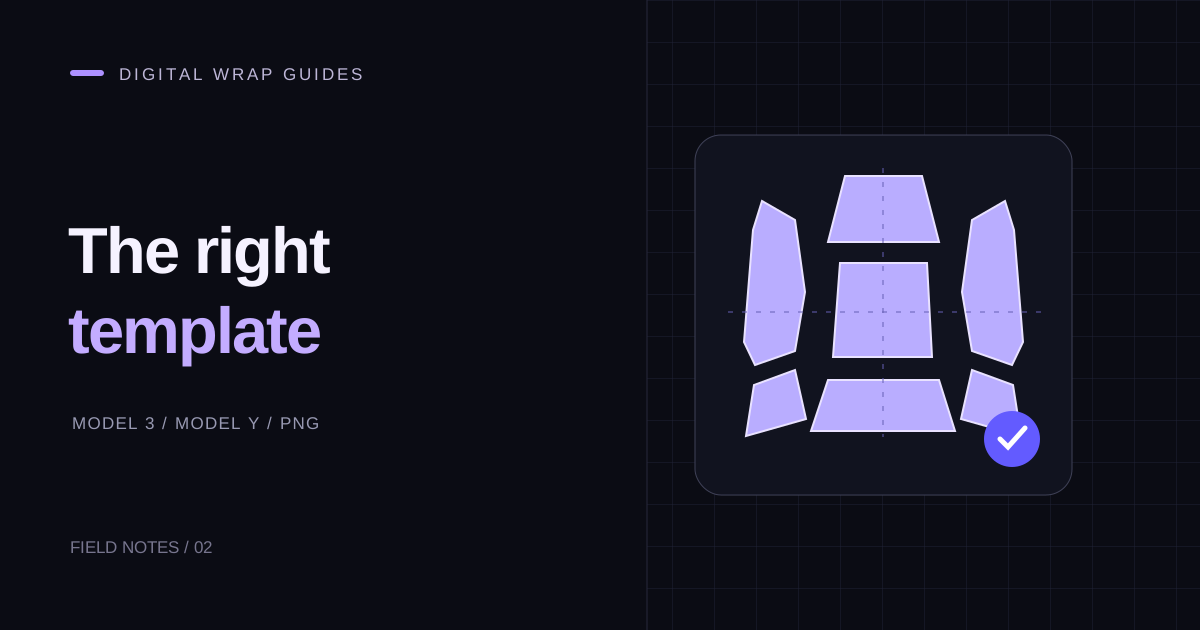
Searching for a free Tesla wrap PNG often leads to two different things: a blank vehicle template and a finished design. The template tells you where the body panels belong. The finished design contains colors and artwork fitted to one of those layouts. Understanding the difference helps you avoid downloading a good-looking image that is unsuitable for your car.
This guide focuses on Model 3 and Model Y digital wraps. For the full design process, start with the digital-wrap introduction.
Match the template to the vehicle
Tesla publishes its templates and requirements in the official custom-wrap repository. Choose the correct model, year range, and trim from that source, and paint the white regions. The final PNG must be 512 × 512 to 1024 × 1024 pixels and no larger than 1 MB. Vehicle software and regional availability can affect whether importing is supported.
Do not select a layout solely because the filename says Model 3 or Model Y. Check the actual vehicle selection before editing. A facelift can change panel proportions; a variant can change bumpers or other visible surfaces. Keep the model selection in your project notes so you can trace an export back to its starting template.
Read the atlas as a collection of panels
A wrap template is a flat atlas, not a photograph of an unfolded car. The hood, doors, bumpers, and smaller parts may be separated, rotated, or scaled to fit the square image. Blank gaps are part of that arrangement.
Before adding detailed artwork, place a temporary bright color on one panel at a time and inspect the available preview. This makes orientation easier to understand. Remove the temporary marks before export. For a stripe that crosses several panels, work on each section deliberately instead of drawing one straight line across the whole atlas and assuming it will connect.
What makes a useful free PNG?
The most useful download is one you can identify and edit. Look for a stated vehicle variant, a clear image size, and enough contrast to inspect panel edges. A preview image or social-media thumbnail may be compressed, cropped, or decorated with captions; it should not be treated as the import file.
Keep the original downloaded file untouched. Work on a copy, name the copy after your vehicle and design, and record where the template came from. If you use artwork made by someone else, check their reuse terms before sharing a modified version. A free download does not automatically grant permission to republish its artwork.
Build a reusable Model 3 or Model Y workflow
Open the matching vehicle in the editor, then create a simple two-color version first. Export it and inspect the image at its actual resolution. Once the placement is understandable, add the pattern, accent, or lettering you want.
Save separate versions for major changes. Names such as Blue Stripe 01 and Blue Stripe 02 are more useful than several files all called “final.” Keep the editable project alongside the PNG so you can repair a door detail without reconstructing the entire composition.
Browse the gallery for composition ideas rather than assuming every displayed design fits every variant. Our prompt guide can help you describe a new look. AI generation uses credits; the pricing page explains the available packs.
Check the export before importing
Confirm the model selection, file format, image dimensions, and filename. Then follow the phone or USB guide. If the file is rejected or the design looks misplaced, use the Paint Shop troubleshooting checklist and the quick-start guide to isolate the issue before redesigning the artwork.